Stock administration based on articles
It is feasible to maintain stock administration in which the stock is perceived as several objects rather than as some pots with the aid of stock administration based on articles (also known as anonymous stock administration). In reality, it boils down to producing, receiving, and/or consuming goods. Jars are used only to record the quantity of products in the company in this type of inventory management. When you modify a product's inventory, the system decides which pots require replacement.
This type of shape is not available in individual pots. It is beneficial that you grab random jars when you need a specific item because you don't have to name every jar in your organization. For instance, the only administrative task left is to document the articles that have been "issued".
Combining anonymous and "regular" stock administration is not possible. You can change stock administration from 'normal' to anonymous. However, the opposite approach won't work because the anonymous stock administration does not fill in some fields that are required in the "normal" stock administration.
To make the scanning process easier, the item now has an EAN/GTIN number. This is a unique 14-digit number that identifies a product or service. By entering this number for the item in your administration, you can use a scanner and a specific scanning program to perform stock activities. To use this function with standard stock administration, you will need to use the barcode on the label that you have printed yourself.
The substance report for each department and employee has been updated
The report titled "Substances per department/employee" has been entirely updated. You can choose to display the chemicals by department or by individual from the list of parameters. It is also possible to further filter the list by department, employee, substance, or substance listings. Using the 'Linked to' tab, the individuals and departments associated with a substance will be considered when creating the list. The selection process will also involve the related employees' departments or linked employees' departments. If a department adds an employee to the list, the department name will be listed after the employee's name.
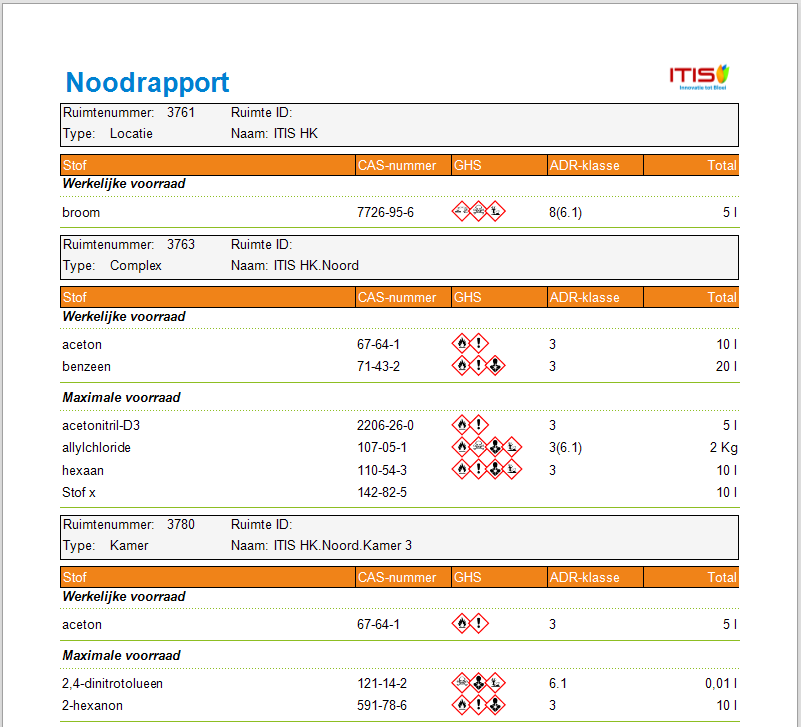
New report 'Emergency report'
A new overview has been incorporated into SOFOS360, which displays a 'space tree' of all maximum stocks—that is, stocks that are genuinely available—in an easy-to-read way. The totals of the substances can be added up to the top level of the selected tree if necessary.
This overview provides a summary of the potential substances in a building or room and is useful in emergency situations. Click the link for the Fire Safety report.
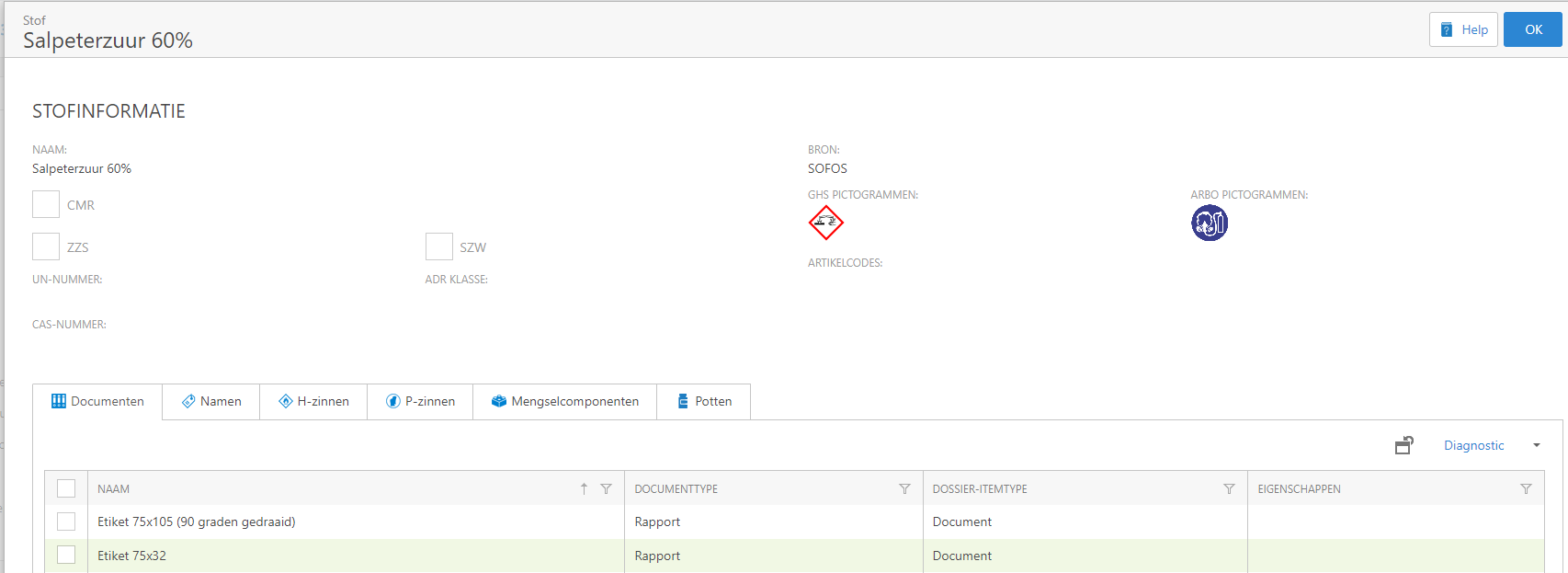
The information portal has been updated with additional data on the H and P phrases in addition to a mixture information
The information portal also presents the substance's H and P phrases. Information regarding the various components of the substance, if it is a mixture, is now also accessible. Lastly, the substance's ADR class is now displayed as well.
It is possible to copy CMR procedures and extend CMR administrations
This version enables you to copy a CMR process (any action or process in your company that uses a CMR substance). It facilitates the rapid creation of CMR process descriptions for related processes. You can indicate to include any administered exposure data and linked documents in the copy when you're copying.
This version also enables you to extend the administration of CMR processes. CMR process administration tracks for a given year who may have come into contact with a specific CMR substance and how frequently. At the end of the year, we usually look at which CMR processes are still in use in your organization, who will be carrying them out again in the new year, and how frequently. This information shall be recorded in the CMR process administration for the new year. However, it is common for a similar process to be performed the following year, possibly by the same people. In such cases, it is beneficial to gradually move the CMR process administration from one year to the next. Minor adjustments can then be made to the new administration, which can then be marked as 'final'. The ability to copy to a new year (prolong) will drastically speed up the annual CMR process update round.
General API for requesting substance data
The latest version allows you to request substance information from outside SOFOS360 using a so-called API. External systems can utilize this feature to request substance information from SOFOS360 for a process within that external system. Consider the ordering process in an external ordering system, where the order flow differs when ordering CMR chemicals versus non-CMR substances. For details on how to use this functionality, refer to API.
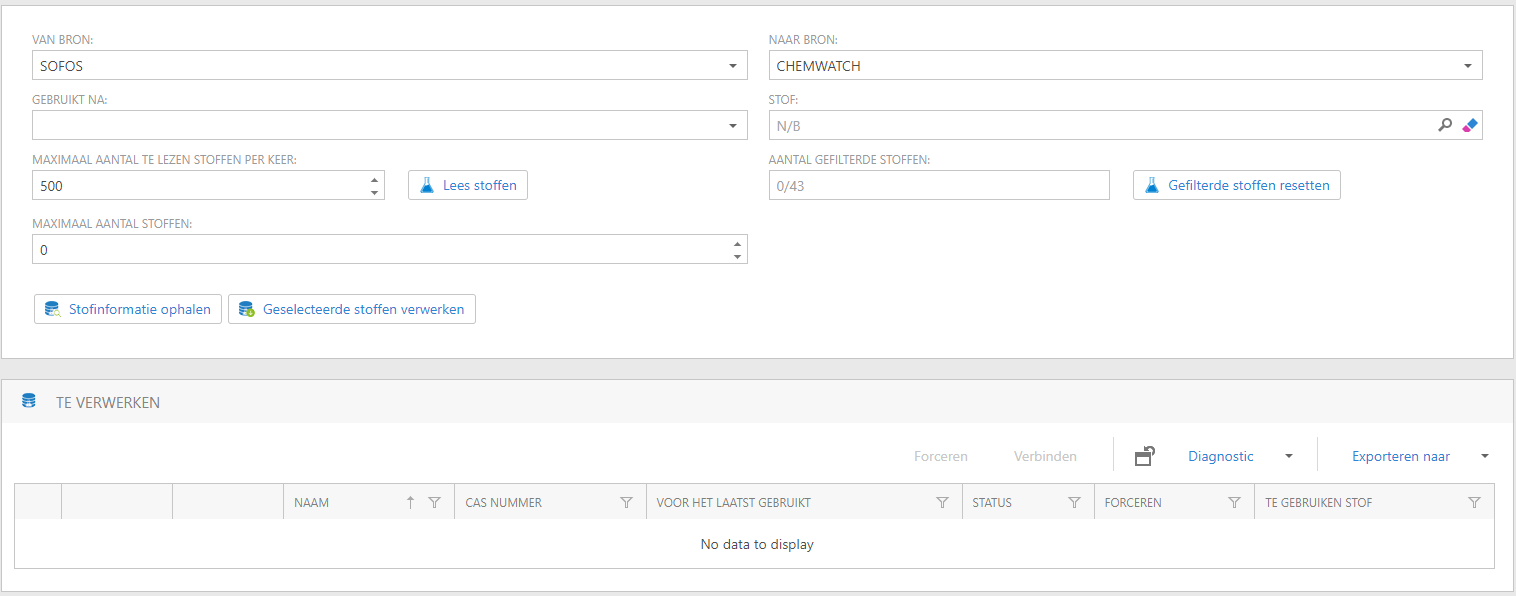
Recalling substances previously viewed in the 'Replace substance data' process
When replacing substance data within your administration with substance data from an external database, the previous version did not store the list of substances that were seen but did not need to be updated. As a result, these chemicals will be added to the list of substances to be replaced the next time you use this feature. This version saves the list of compounds previously viewed so that if you replace substance information with data from an external database, you can continue where you left off the next day.
Furthermore, the data on the screen is more logically organized, making it easier to see the procedures you need to follow to replace substance data.
Marking a substance as 'Expired' has been modified.
Previously, marking a SOFOS360 substance as 'Expired' differed from labeling a compound from an external database. This has been fixed in the current version. Starting with this version, the 'Expired for our organization' checkbox on the 'Substance' tab for both SOFOS360 and third-party database substances indicates that the substance is no longer active. The substance will then be removed from the information portal, no longer accessible in the substance overview, and no longer available as a link to a new article.
The 'direct printing' of a label for pot or barrel changes has improved
Regarding pot and barrel changes (issue, intake, etc.), a label can be printed immediately. However, this function was only useful in a few circumstances (directly linked printers). The performance of this function has been slightly modified in the new version, allowing it to now work with any printer supported by Windows.

If you select 'Print immediately', the label definitions will be created and exported to PDF. The PDF reader installed on your workstation will then be launched, and if it is a 'real' PDF reader, such as Acrobat or Foxit PDF reader, the print screen will display immediately with your workstation's standard printer. If everything is set up correctly, you will only need to press the enter key to print the labels.
New ARBO pictograms connected with P-phrases can directly connect to the linked substances
It is feasible to connect ARBO pictograms with P-phrases. Starting with this version, when you save the P-phrase, any missing ARBO pictograms will be added to all substances associated with it. ARBO pictograms associated with the substance that is not linked to the current or other P-phrases will remain. This function only inserts OHS icons.
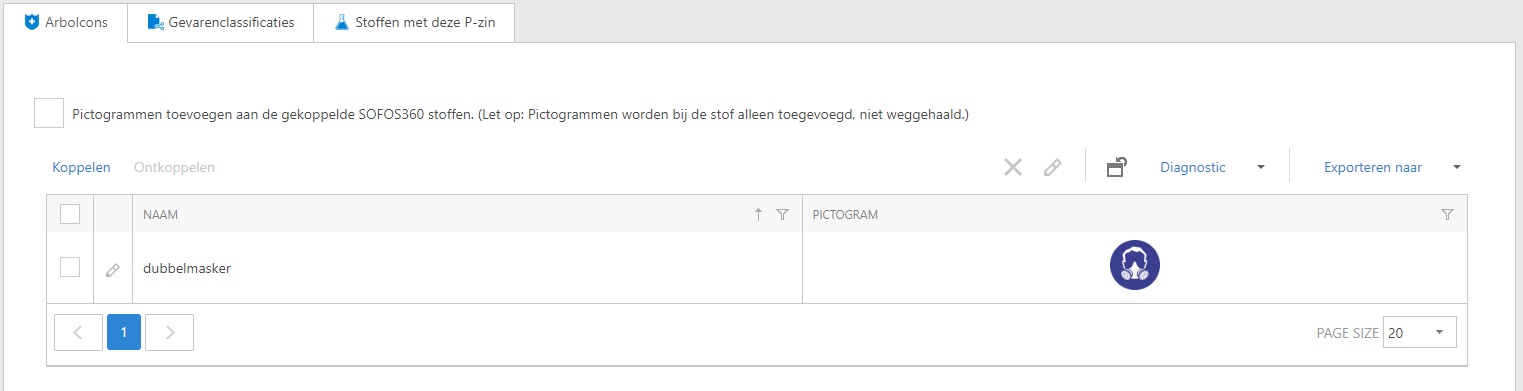
The screen for adding icons to a P-phrase can be found under 'Settings - Substance - Texts - P-Phrases'.
Generate a CMR report for exporting to Excel
Two reports are provided to assist you in comprehending your CMR registration: 'Process risk indicator' and 'Process exposure summary'. For additional examination, both reports now include the option of generating the report in a format that can be readily exported to Excel.

If you select 'yes' for the 'Create for Excel' parameter, a report will be created with all data structured per column. You can export this report to Excel by clicking the 'Export to' button. Because all data is in columns, exporting to Excel will result in a useful Excel document where you can further analyze the data.
Fill in rooms, projects, and cost centers promptly with pot and barrel modifications
Within SOFOS360, it is possible to associate a person with a project or cost center. Furthermore, when connecting a person to a department, a room can be accessed. For pot and barrel changes, starting with this version, after entering an employee, it will be verified to see if the previously specified SOFOS360 components may be used to pick a space, cost center, and/or project unambiguously. If that's the case, the detected part will be immediately inserted and filled in on the screen. This feature reduces the number of activities required while changing pots and barrels.
Search options for substances, articles, and pots have expanded
SOFOS360 provides multiple options for searching elements. Consider the general search screen appearing in the top right corner of almost all overviews, and the filter row and search panel. This version includes new capabilities for substances, articles, and pots, expanding the search screen's possibilities.
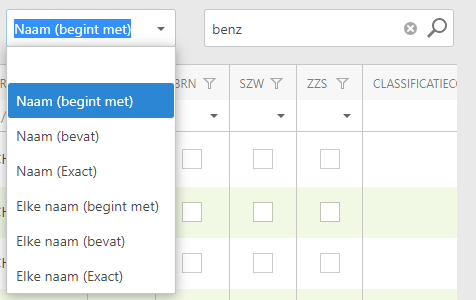
In addition to the general search screen at the upper right (perhaps below the dots), there's also now a selection menu for substances, articles, and pots that allows you to customize how the general search panel performs. If you do not select anything from the drop-down menu, the search screen will search through all data, including the substance, as usual. This feature is efficient, but it usually takes a little longer. However, if you know you wish to search for a drug whose name begins with a specific character string, please notify SOFOS360. In such case, selecting 'Name (starts with)' from the drop-down menu indicates that you only want to search for the 'name' and, more specifically, that the name must begin with what you put in the search screen. This feature enables SOFOS360 to search more efficiently and display search results more quickly.
This feature also enables you to search whether the name precisely matches the search term (the standard search method is 'contains', which can occasionally produce too many results). Finally, the substance overview allows you to search for all fabric names. For example, you can quickly look for a substance whose name includes the search term.
A new approach of searching for spaces in pot and barrel operations
When working on pots and/or barrels, a new approach of searching for spaces is available.
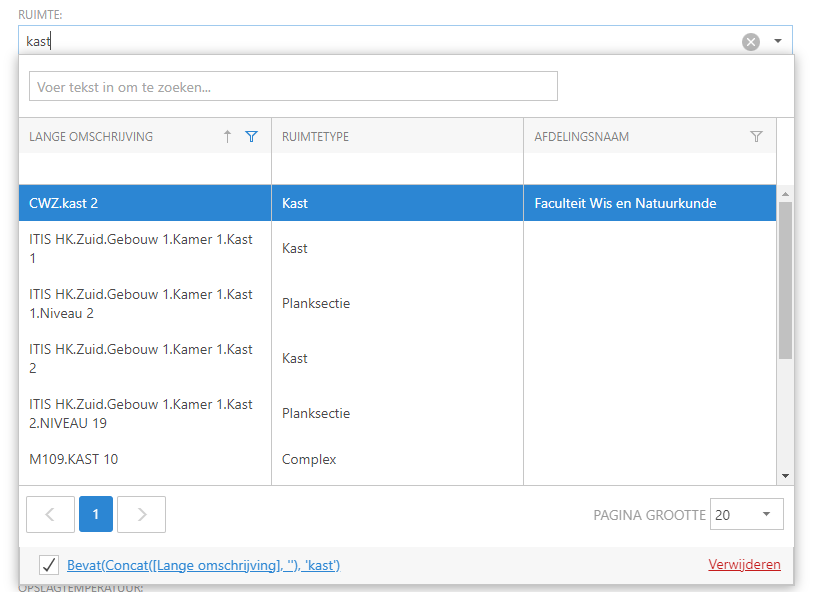
In this version, you do not need to launch the search screen before searching for a room; instead, you can start typing (part of) the room's full name immediately. The search screen will then appear instantly, and the results will be filtered depending on the occurrence of the keywords you provided in the 'long description'. To enter the filtered list, use the arrow keys and the enter or tab key to choose a room. You can also select a room with the cursor.
In the search screen, you can also search in the search field at the top (for the occurrence of the search term in all fields in the visible columns) or use the filter row (for the beginning of the search term in the selected column).
In addition to searching for a room, you can use Ctrl-V to paste the full room name directly into the input field. You must first copy the room name to the clipboard (select the room name with the mouse and copy it with Ctrl-C).
New lists
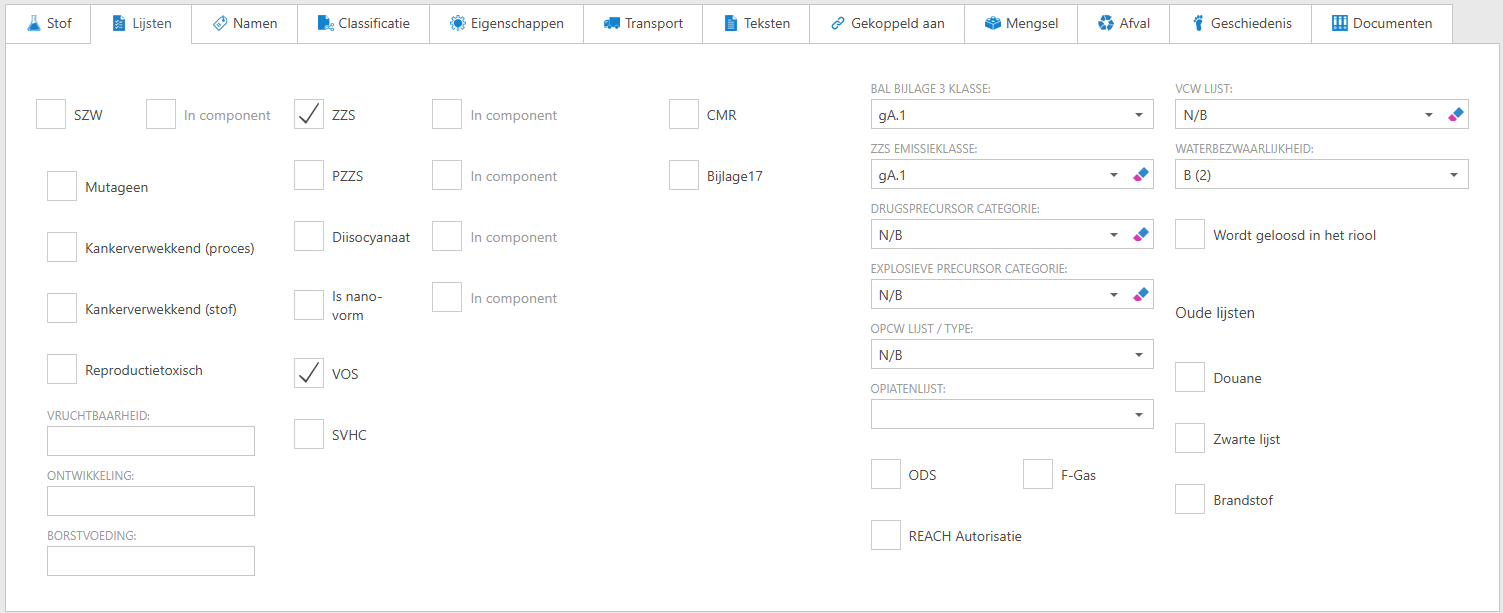
SOFOS has acquired two new lists that can sync with the official list on a regular basis. The new listings include PZZS and VOC. Furthermore, synchronization with the SZW list has been extended. If data on the classification categories (fertility, development and/or lactation, mutagenic, carcinogenic, or toxic to reproduction) are included for a substance on the list, it will be recorded for the substance starting with this version. Finally, the WVMC list has been divided into drug and explosives precursors.
From this version onwards, the lists are located on a new 'Lists' tab, where you can find all information about them.
Furthermore, in this release, it is possible to display a small screen next to the substance data that shows the most critical hazards. You may choose whether or not to see this screen in your user settings.
Several
- The Mutation Screens for Pot and Article now include the lists 'Opium Act' and 'WVMC'. These lists are also available as a filter option on the stock overviews 'Stock', 'Use', and 'Changes'.
- All ordered items and order codes are now displayed at the order level in the order overview. Using an order code to look for an order can make the process considerably easier.
- If a substance in the database is declared expired by third parties, an asterisk will be placed after its name. Alternatively, the substance is available in SOFOS360.
- This version allows you to associate a person or department to the same substance more frequently. By adding different start and end dates, you may indicate that the substance was associated with a department or individual at various times.
- The 'All substances' filter displays all substances in this version. In the previous version, expired chemicals were filtered out.
- The 'Maximum stock per room' overview can now be filtered for ZZS and SZW substances. Furthermore, a substance can now be added into this overview, and this list can now serve as the 'Maximum stock for a substance'. This feature allowed the 'Maximum stock per substance' list to be deleted.
- From this version onwards, substance will only be classified as a CMR substance if it is associated with at least one H-phrase with a CMR indication.
- When unpacking a bulk package of cylinders, the number, expiry date, and re-inspection date can now be input for each cylinder.
- The overviews of the pot and barrel history can now be searched and filtered using the name of the linked employee.
See Also
